HTML to PDF Converter – Convert Web Pages to PDF Online
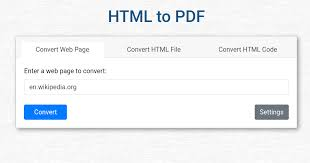
HTML to PDF Converter – Convert Web Pages to PDF Online: 7 Easy Ways
Introduction
HTML is one of the core technologies used to create websites and web pages. It defines the structure of online content, including headings, paragraphs, images, tables, links, forms, and other elements.
PDF, on the other hand, is designed for sharing and preserving documents in a consistent format.
When you need to turn an HTML file or web page into a printable and shareable document, an HTML to PDF Converter can make the process much easier.
Instead of manually copying content into a document editor, you can convert HTML directly into PDF. The resulting file can be saved, shared, printed, archived, or opened on almost any device.
In this guide, you’ll learn 7 easy ways to convert HTML to PDF, how the conversion works, common formatting problems, useful tips, and practical HTML-to-PDF use cases.
What Is an HTML to PDF Converter?
An HTML to PDF Converter is a tool that transforms HTML content into a PDF document.
HTML provides the structure and content of a web page, while PDF provides a fixed document layout.
For example, simple HTML might look like this:
<h1>Product Report</h1>
<p>This is an example HTML document.</p>
After conversion, the content can become a PDF document containing the same heading and paragraph.
An HTML-to-PDF tool may accept:
- An HTML file
- HTML source code
- A web page URL
- A complete website page
- HTML generated by an application
The exact options depend on the converter.
Why Convert HTML to PDF?
There are many reasons to turn HTML content into PDF.
A web page can change over time, disappear, or look different depending on the browser and screen size. A PDF provides a more stable representation of the content.
Common reasons include:
- Creating printable documents
- Saving web pages for offline access
- Creating invoices
- Generating reports
- Archiving online content
- Sharing documents
- Creating digital brochures
- Generating receipts
- Producing documentation
- Creating downloadable resources
For businesses, automated HTML-to-PDF conversion can also be useful for generating invoices, order summaries, certificates, reports, and other documents.
7 Easy Ways to Convert HTML to PDF
There are several methods for converting HTML files and web pages into PDFs.
The best approach depends on your technical experience and what type of HTML content you’re working with.
1. Use an Online HTML to PDF Converter
An online HTML to PDF Converter is one of the simplest options.
You generally upload an HTML file or provide HTML content, select the conversion option, and download the resulting PDF.
A typical process looks like this:
- Open an HTML-to-PDF converter.
- Upload your HTML file or enter the required content.
- Start the conversion.
- Wait for the PDF to be generated.
- Preview the result.
- Download the PDF.
This method doesn’t require programming or specialized desktop software.
It’s particularly useful for occasional conversions.
2. Save a Web Page as PDF From Your Browser
Modern web browsers often provide built-in printing options that allow users to save web pages as PDF files.
The general workflow is:
Open Web Page
     ↓
Print
     ↓
Select "Save as PDF"
     ↓
Choose Settings
     ↓
Save PDF
This is convenient when you simply want to save a web page for later.
Before saving, you can often adjust settings such as:
- Page orientation
- Paper size
- Margins
- Background graphics
- Headers and footers
- Scale
The final appearance depends on how the website is designed and how its CSS handles printing.
3. Convert HTML to PDF Using Python
Python can automate HTML-to-PDF conversion.
This is useful when PDFs need to be generated regularly.
For example, a website might generate an invoice using HTML and then convert it into a PDF automatically.
A typical workflow looks like:
HTML Template
      ↓
Insert Data
      ↓
HTML Document
      ↓
PDF Conversion Library
      ↓
PDF File
This approach is useful for:
- Automated reports
- Invoices
- Certificates
- Receipts
- Order summaries
- Business documents
Developers can customize the HTML and CSS before generating the PDF.
4. Use JavaScript or Node.js
JavaScript and Node.js are also commonly used for HTML-to-PDF automation.
A web application can generate an HTML page and use a browser automation or PDF-generation library to produce a PDF.
This is useful when an application already runs on JavaScript.
For example:
Web Application
      ↓
HTML Page
      ↓
Browser Rendering
      ↓
PDF Generation
      ↓
Download
This approach can preserve modern HTML and CSS more accurately than some basic conversion tools.
5. Use Desktop PDF Software
Some desktop applications can open web content or HTML files and save them as PDFs.
This method can be useful when you need additional control over:
- Page size
- Margins
- Fonts
- Layout
- Headers
- Footers
- Security settings
Desktop software can also be convenient for users who frequently work with PDFs.
6. Use Command-Line HTML-to-PDF Tools
Developers and system administrators can use command-line utilities for automated PDF generation.
This is useful for servers and batch processing.
For example:
HTML Files
    ↓
Command-Line Tool
    ↓
PDF Generation
    ↓
PDF Folder
A command-line workflow can process many HTML files without requiring manual interaction.
This makes it suitable for documentation systems, automated reporting, and server-side applications.
7. Use an API for Automated HTML to PDF Conversion
Businesses and software applications may need to convert HTML into PDFs automatically.
An HTML-to-PDF API can allow an application to submit HTML content and receive a PDF response.
A typical workflow is:
Application
    ↓
HTML Content
    ↓
PDF API
    ↓
Generated PDF
    ↓
Download / Storage
This can be useful for SaaS platforms, e-commerce stores, billing systems, reporting platforms, and document-generation services.
How Does an HTML to PDF Converter Work?
HTML-to-PDF conversion is more complicated than simply changing a file extension.
The converter needs to render the HTML as a page and then create a PDF based on that rendered layout.
Step 1: Read the HTML
The converter reads the HTML structure.
It identifies elements such as:
- Headings
- Paragraphs
- Images
- Tables
- Lists
- Links
- Containers
Step 2: Load CSS
CSS controls the appearance of the HTML.
The converter may process:
- Fonts
- Colors
- Spacing
- Borders
- Page layouts
- Print styles
Step 3: Load Resources
If the HTML references images, stylesheets, or fonts, the converter may need to access those resources.
Step 4: Render the Page
The HTML is rendered similarly to how a browser displays a web page.
Step 5: Apply Page Settings
The converter determines:
- Paper size
- Margins
- Orientation
- Page breaks
- Headers
- Footers
Step 6: Generate the PDF
The rendered page is finally converted into a PDF document.
HTML vs PDF: What’s the Difference?
| Feature | HTML | |
|---|---|---|
| Primary Purpose | Web content | Fixed documents |
| Responsive Layout | Yes | No |
| Browser Display | Excellent | Supported |
| Printing | Possible | Excellent |
| Editing | Code-based | Requires PDF tools |
| Page Layout | Flexible | Fixed |
| Interactivity | High | Limited compared with HTML |
| Sharing | Web-focused | Document-focused |
| Offline Use | Possible | Excellent |
PDF is better when you need a stable document that maintains its layout across devices.
Benefits of Using an HTML to PDF Converter
Converting HTML into PDF can provide several advantages.
Consistent Layout
PDF preserves a fixed page layout instead of adapting to different screen sizes.
Easy Printing
PDF is designed for printing and can be formatted for standard paper sizes.
Convenient Sharing
A PDF can be emailed, uploaded, downloaded, and shared across devices.
Offline Access
Once saved, a PDF can usually be viewed without visiting the original web page.
Professional Documents
HTML can be designed with CSS and then converted into polished PDFs for business use.
Automation
Developers can generate PDFs automatically from dynamic HTML templates.
How to Convert HTML to PDF Online
If you’re using an online HTML to PDF Converter, the process is generally simple.
Step 1: Prepare the HTML
Make sure your HTML file is complete and properly structured.
Step 2: Open the Converter
Visit an online HTML-to-PDF conversion tool.
Step 3: Upload or Enter HTML
Depending on the tool, you may be able to upload an .html file, paste HTML code, or provide a web page address.
Step 4: Start Conversion
Run the conversion process.
Step 5: Preview the PDF
Check the generated document for:
- Missing images
- Incorrect fonts
- Broken layouts
- Page breaks
- Cut-off content
- Missing styles
Step 6: Download the PDF
Save the finished PDF to your device.
HTML to PDF for Web Pages
One of the most common uses is saving web pages as PDFs.
This can be useful for:
- Articles
- Tutorials
- Documentation
- Receipts
- Product pages
- Research material
- Reference pages
- Reports
However, web pages are often responsive and dynamic.
A website that looks excellent on a screen may not automatically produce a perfect PDF.
Print-specific CSS can help control how web content appears on paper.
HTML to PDF for Invoices
Businesses can use HTML templates to create invoices and convert them into PDFs.
For example:
Customer Information
       ↓
Invoice HTML Template
       ↓
Insert Products & Prices
       ↓
HTML to PDF
       ↓
Invoice PDF
This allows developers to create customized invoices with company branding, tables, payment details, and totals.
Automating this process can reduce manual document creation.
HTML to PDF for Reports
HTML is often a convenient format for generating reports because it supports flexible layouts and styling.
A reporting system can create an HTML report dynamically and then convert it into a PDF.
For example:
Database
   ↓
Report Data
   ↓
HTML Template
   ↓
CSS Styling
   ↓
PDF Conversion
   ↓
Final Report
This approach can be used for sales reports, analytics reports, financial summaries, and business dashboards.
Common HTML to PDF Conversion Problems
Not every HTML page will convert perfectly.
Several issues can affect the final PDF.
Missing Images
Images may not appear if the converter cannot access their URLs or local file paths.
Font Problems
Custom fonts may not be available to the conversion engine.
CSS Differences
Not every HTML-to-PDF engine supports every CSS feature.
JavaScript Content
Some web pages generate content dynamically with JavaScript.
A simple converter may not execute that JavaScript correctly.
Page Breaks
Long tables or sections can be split across pages in undesirable ways.
Responsive Layouts
Mobile-first designs may produce unexpected results when rendered onto fixed-size PDF pages.
External Resources
Linked CSS files, images, fonts, and scripts may fail if they aren’t accessible to the converter.
How to Improve HTML to PDF Quality
You can take several steps to improve the final document.
Use Print CSS
Create CSS rules specifically for printing.
For example:
@media print {
  body {
    font-size: 12pt;
  }
}
Print-specific styles can help control page appearance.
Set a Page Size
Define an appropriate page size such as A4 or Letter depending on your audience.
Control Margins
Use print styles to create suitable page margins.
Avoid Extremely Wide Content
Large tables and wide images can be cut off when printed.
Optimize Images
Use appropriately sized images to reduce file size and improve rendering.
Test Page Breaks
Check where headings, tables, images, and paragraphs break between pages.
HTML to PDF and Print CSS
Print CSS is particularly important when converting web pages into PDF documents.
A web page may use a responsive layout designed for screens, while a PDF needs a fixed page width.
CSS can help define how content behaves during printing.
Useful concepts include:
@media print- Page margins
- Page size
- Page breaks
- Hidden navigation
- Print-only content
- Avoiding breaks inside important elements
For example, website navigation may be useful online but unnecessary in a PDF.
A print stylesheet can hide elements that shouldn’t appear in the final document.
Is an Online HTML to PDF Converter Safe?
Online conversion can be convenient, but privacy should be considered.
If you’re converting public HTML content, an online tool may be suitable.
However, don’t upload confidential HTML documents containing:
- Customer information
- Private reports
- Passwords
- API keys
- Internal company information
- Financial data
- Sensitive personal information
Before using an online converter, consider its file-handling policies and whether uploaded files are stored.
For highly sensitive documents, local conversion may provide greater control.
How to Choose the Best HTML to PDF Converter
Consider these factors when selecting a conversion tool.
HTML Support
Make sure the tool supports the HTML and CSS features used by your page.
JavaScript Support
If the page depends on JavaScript, choose a conversion method capable of rendering dynamic content.
Image Support
Check whether remote and local images are handled correctly.
File Size
For large HTML pages, check whether the converter has file-size restrictions.
Page Settings
Look for control over:
- Page size
- Orientation
- Margins
- Scale
- Headers
- Footers
Privacy
Choose a trustworthy service when working with private content.
Tips for Converting Web Pages to PDF
Follow these tips for better results.
1. Preview Before Saving
Always inspect the final PDF.
2. Remove Unnecessary Website Elements
Navigation bars, advertisements, pop-ups, and interactive controls may not belong in the PDF.
3. Use Print-Friendly CSS
Designing a page specifically for printing can significantly improve PDF quality.
4. Check Images
Make sure important images load correctly.
5. Verify Fonts
Confirm that the desired fonts are available.
6. Check Page Breaks
Make sure important headings and tables aren’t split awkwardly.
7. Test Multiple Pages
Don’t inspect only the first page. Long documents can have formatting problems later.
Who Can Benefit From an HTML to PDF Converter?
An HTML-to-PDF tool can help many users.
Website Owners
Website owners can create downloadable PDF versions of online content.
Developers
Developers can generate invoices, reports, certificates, and documents automatically.
Businesses
Companies can turn web-based reports and records into shareable documents.
Students
Students can save web-based research and learning materials as PDFs.
Designers
Designers can convert HTML prototypes into fixed documents for review.
Content Creators
Writers can create printable versions of online articles and resources.
HTML to PDF Use Cases
| Use Case | Benefit |
|---|---|
| Web Page Archiving | Preserve online content |
| Invoices | Generate printable billing documents |
| Reports | Create professional PDF reports |
| Receipts | Produce downloadable receipts |
| Certificates | Create printable certificates |
| Documentation | Share fixed documentation |
| E-commerce | Generate order summaries |
| Research | Save web content for offline reference |
| Brochures | Create printable marketing material |
Frequently Asked Questions About HTML to PDF Converter
1. What is an HTML to PDF Converter?
An HTML to PDF Converter is a tool that transforms HTML content, HTML files, or web pages into PDF documents.
2. Can I convert HTML to PDF online?
Yes. Online HTML-to-PDF converters can allow you to upload HTML files, paste HTML content, or convert supported web pages into PDF format.
3. Can I convert a web page into a PDF?
Yes. Many browsers provide a built-in print option that lets you save a web page as a PDF. Dedicated converters can provide additional options.
4. Can I convert HTML to PDF for free?
Many tools and browsers provide free HTML-to-PDF conversion. Features, file-size limits, and advanced options vary by service.
5. Can HTML CSS be preserved in PDF?
Much of the HTML and CSS styling can be preserved, but support depends on the conversion engine. Some advanced CSS features may render differently.
6. Can JavaScript-generated content be converted to PDF?
It depends on the conversion method. Tools that use a full browser-rendering engine are generally better suited to pages that rely heavily on JavaScript.
7. Why are images missing from my HTML PDF?
Images may be missing because their URLs are inaccessible, local file paths aren’t supported, authentication is required, or the converter cannot load the referenced resources.
8. Can I convert an HTML file to an A4 PDF?
Yes. Many HTML-to-PDF tools support A4 page dimensions. Print CSS can also help control the layout.
9. How can I prevent HTML content from being cut off in PDF?
Use suitable page widths, margins, print CSS, and responsive layouts. Wide tables and large images should be optimized for the target paper size.
10. Can Python convert HTML to PDF?
Yes. Python can be used with appropriate PDF-generation or HTML-rendering libraries to automate HTML-to-PDF conversion.
11. Can I convert multiple HTML files to PDF?
Yes. Batch conversion can be performed with scripts, command-line tools, desktop applications, or APIs.
12. Is an online HTML to PDF converter safe?
Safety depends on the service and how it handles uploaded content. Avoid uploading confidential HTML files to services you don’t trust. Local conversion may be preferable for sensitive information.
Helpful External Resource
For additional information about HTML and web standards, you can explore the MDN Web Docs HTML documentation.
Final Thoughts
An HTML to PDF Converter provides a convenient way to turn flexible web content into a stable, printable document.
HTML is excellent for creating responsive websites and dynamic online content, while PDF is better suited to fixed layouts, printing, sharing, and offline storage.
For occasional tasks, an online converter or your browser’s built-in PDF printing feature may be all you need. For businesses and developers, Python, JavaScript, command-line tools, or APIs can automate PDF generation from HTML.
The quality of the final PDF depends heavily on the original HTML, CSS, images, fonts, and JavaScript. Before publishing or sharing a converted document, always check page breaks, images, fonts, margins, and overall formatting.
With the right conversion method and print-friendly HTML, you can turn web pages and HTML files into professional PDF documents quickly and efficiently.